Share one window without exposing your whole desktop
Remote pairing breaks down when the call turns into “hold on, let me close that.” Password managers, notifications, internal docs, and personal tabs have a way of surfacing at the worst time. A private-by-default setup fixes this by making “share only what’s needed” the default, not an extra step you remember mid-call.
This workflow is designed for engineers who pair frequently: interviews, production debugging, code reviews, client sessions, and ad hoc help. The goal is simple: share a single app window reliably while keeping everything else hidden—even when you alt-tab, search, or get pinged.
Step 1: Start from a clean “pairing workspace”
Create a dedicated desktop or focus mode
Before you touch screen sharing settings, decide where pairing lives. The easiest win is separation:
- macOS: Use a separate Desktop/Space for pairing. Keep personal apps on another Space.
- Windows: Use a separate virtual desktop for pairing. Put only pairing apps on that desktop.
This reduces accidental exposure even if you briefly switch windows. It also makes your session repeatable: you know what belongs in the pairing space and what doesn’t.
Open only the tools you intend to share
In your pairing workspace, open your editor and whatever else is truly necessary (terminal, browser for docs, issue tracker). Don’t open your password manager “just in case.” If you must authenticate, do it before you start sharing or do it off-screen (more on that below).
Step 2: Choose window sharing, not screen sharing
The single biggest privacy lever is choosing one window rather than an entire screen. When you share a whole display, you’re betting that nothing unexpected will appear: notifications, meeting invites, a Slack DM preview, a calendar reminder, a file download banner.
Window sharing makes your setup resilient. Even if sensitive content pops up elsewhere, your pair can’t see it if it’s outside the shared window.
Common window-sharing pitfalls to avoid
- Pop-ups inside the shared app: Browser notifications, extension bubbles, auto-fill prompts.
- Accidental “share screen” re-selection: Some tools default to “entire screen” next time.
- Modal dialogs: OS permission prompts can appear above the shared window.
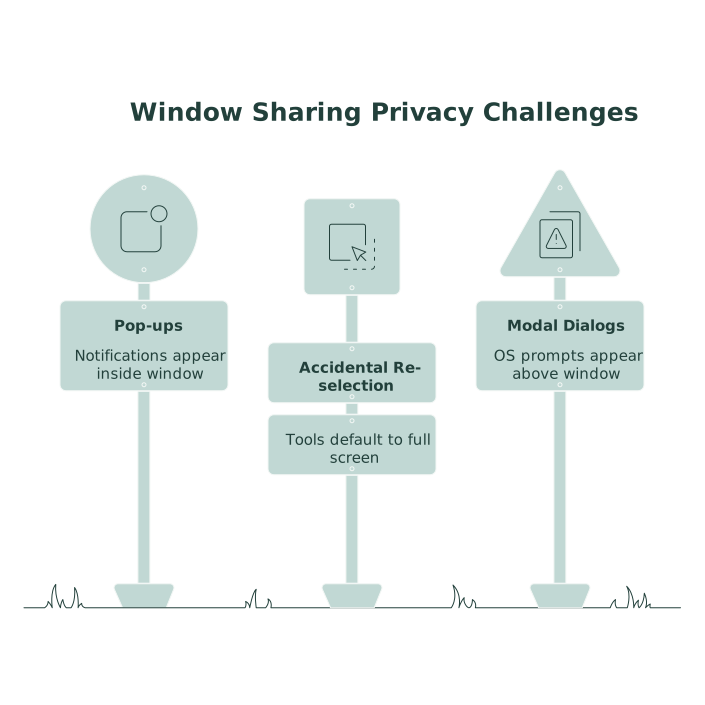
The rest of this workflow is about hardening those weak spots.
Step 3: Hide sensitive apps and notifications before the call
If you pair every day, “remembering to hide things” won’t scale. You want a preflight checklist that runs the same way each time.
Use a tool that supports privacy controls
Tuple is built for remote pair programming, so the default experience prioritizes clarity and speed while still respecting privacy and security. For teams that want a consistent workflow, using a purpose-built pairing tool matters more than adding yet another checklist.
Tuple includes App Veil, which lets hosts hide sensitive applications and notifications before sharing. That’s a practical layer on top of window sharing: even if you slip, your environment is configured to keep common leaks out of view. Tuple also uses end-to-end encryption, and audio/video/screen content aren’t sent to company servers. The product overview is at tuple.app.
Minimize notification surface area
Even with window sharing, notifications can create distractions and accidental context leaks. Aim for “quiet by default” during pairing:
- Enable Do Not Disturb / Focus mode for the pairing workspace.
- Disable notification previews (so the banner doesn’t reveal content).
- Pause email, chat, and calendar banners during calls.
This is less about paranoia and more about keeping the session focused. Your pair shouldn’t learn your internal project names via a random toast.
Step 4: Make authentication and secrets non-shareable
The two high-risk moments in pairing are (1) logging in and (2) accessing internal systems. You can solve both by designing a “secrets stay off-camera” flow.
Handle logins before sharing, or in a non-shared window
If you know you’ll need VPN, SSO, or admin access, do it before you start the call. If a login appears mid-session, stop and move it off-screen:
- Switch to a different desktop/virtual desktop to authenticate, then return.
- Use a separate browser profile for pairing that isn’t signed into personal accounts.
- Avoid showing password manager UI entirely. Treat it like a private app, always.
Prefer “copy token from clipboard” patterns over showing UI
When you must use a token (API key, temporary password), copy/paste without displaying it. If your workflow requires revealing secrets on-screen, it’s worth revisiting the tool or process. Pairing is collaborative; secrets management is not.
Step 5: Build a predictable “shareable” app set
Window sharing works best when the shared window is stable. If your session involves constant app-switching, you’re more likely to mis-click and expose something.
Use a shareable browser profile
Create a browser profile used only for pairing:
- No personal bookmarks bar.
- No personal email or chat logged in.
- Minimal extensions, especially those that display overlays.
- Only relevant cookies/sessions for work systems.
This keeps autofill prompts and personal tabs out of the equation.
Use a shareable notes surface
Pairing often creates a trail of notes: hypotheses, commands, URLs, and decisions. Keep notes in a document that’s meant to be shared. If you need to paste logs, treat them as potentially sensitive and redact before you store them.
If your team struggles with keeping notes useful while removing personal or regulated data, this meeting notes redaction playbook is a good companion process.
Step 6: Control role swapping and remote control intentionally
Great pairing tools make it easy to swap who’s driving. That convenience can also cause accidental exposure if role switching happens while an unrelated window is front-most.
Adopt a “safe window” rule before swapping
- Before you give control or swap roles, bring the editor to the front.
- Close or minimize any internal dashboards you don’t want discussed.
- Confirm the shared window is the one you expect.
This takes five seconds and prevents the common “oops, you just saw the incident channel” moment.
Step 7: Run a 30-second preflight every time
Consistency beats good intentions. Use the same preflight before every call:
- Move to the pairing desktop/virtual desktop.
- Quit or hide password managers and personal apps.
- Enable Focus / Do Not Disturb and disable notification previews.
- Open only the editor/terminal/docs you expect to share.
- Select window sharing and verify the correct window is highlighted.
Over time, this becomes muscle memory. Privacy stops being a scramble and becomes part of the pairing ritual.
Step 8: Post-session cleanup to prevent “next call” leaks
Many leaks happen not during the call, but before the next one—because yesterday’s windows are still open.
- Close internal dashboards and admin panels after pairing.
- Clear the shared browser profile’s tabs back to a neutral state.
- Move personal apps back to a different desktop.
Think of it as resetting the stage so the next session starts private by default.