Audio lag is the hidden tax on remote pairing
In remote pair programming, audio is the control surface. When the sound is late, every micro-decision gets slower: clarifying questions come too late, interruptions pile up, and the pair stops thinking as one unit.
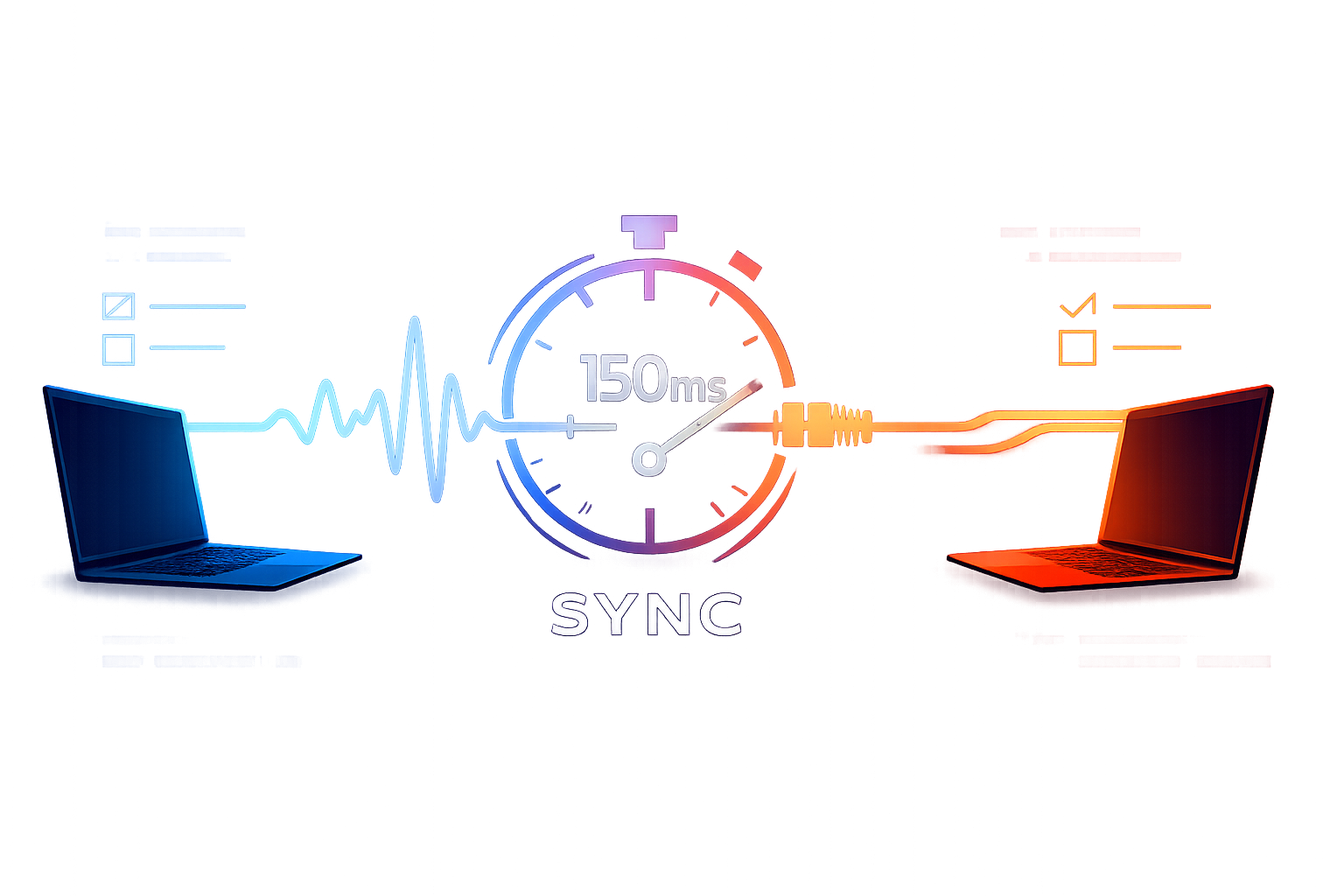
Teams often notice video stutter first, but “conversational latency” is usually what breaks flow. The target most teams should care about is simple: keep one-way conversational latency under ~150ms. That’s the point where turn-taking still feels natural and “overlap” stays rare.
This is a practical checklist for spotting audio lag, measuring it without fancy tools, and fixing it at the source—network, device chain, or call setup. If remote pairing is a core workflow, a purpose-built tool like tuple.app helps because it’s designed around crisp audio and low-latency interaction instead of being a generic meeting room.
What “conversational latency” means in pairing
There are multiple kinds of delay, and mixing them up leads to the wrong fixes.
- Capture and processing delay: mic → OS audio stack → noise suppression/AGC → app encoding.
- Network delay and jitter: the time to traverse the network plus variability between packets.
- Playout delay: buffering on the receiver to smooth jitter.
- Echo control side effects: acoustic echo cancellation can add buffering or make people sound “far away” when the system is struggling.
In pairing, the critical experience is turn-taking. When latency is low, a “wait—stop there” lands in time. When it’s high, you end up speaking over each other, or you both hesitate, and the session becomes a sequence of serialized monologues.
The hidden costs you can see in your engineering metrics
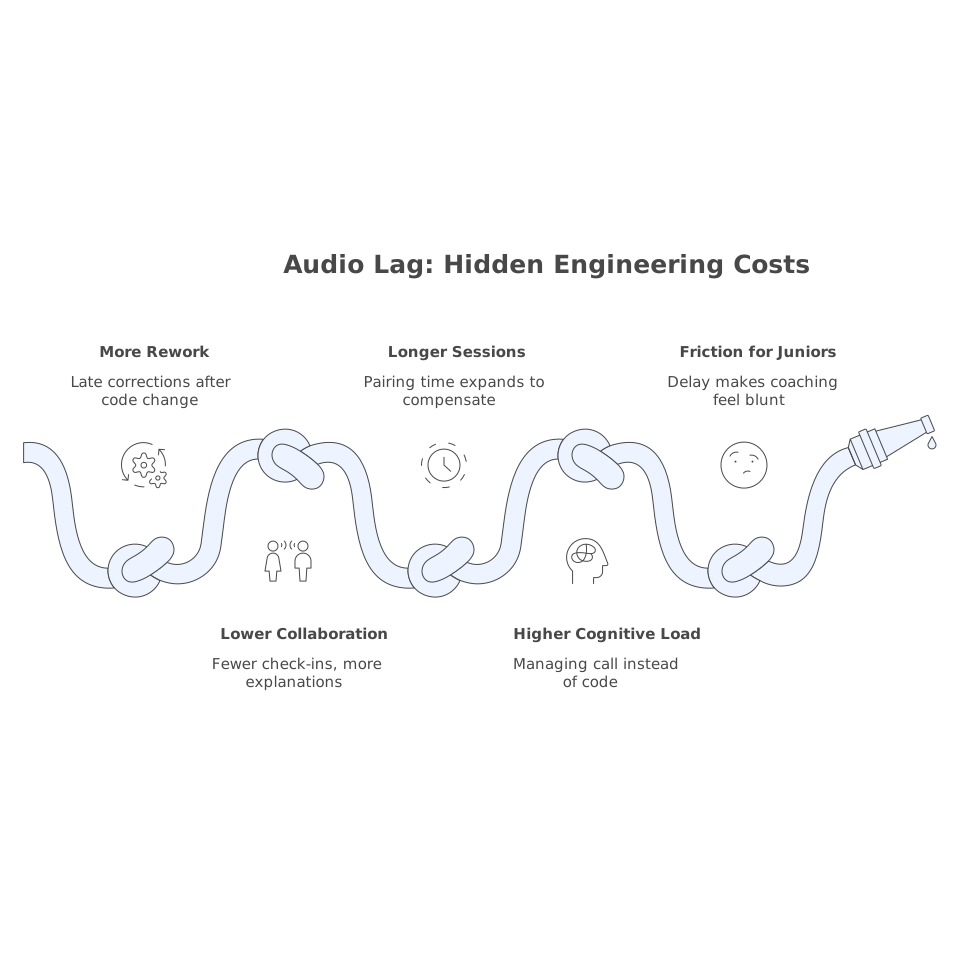
Audio lag doesn’t just “feel annoying.” It creates predictable, measurable drag:
- More rework: late corrections arrive after the code change is already made.
- Lower bandwidth of collaboration: fewer quick check-ins, more long explanations.
- Longer sessions: pairing time expands to compensate for lost micro-iterations.
- Higher cognitive load: people start managing the call instead of the code.
- More friction for juniors: they rely on rapid feedback loops; delay makes coaching feel blunt.
If you already capture collaboration signals from calls, it helps to feed them into a single intake stream so issues don’t vanish into “it was probably my Wi‑Fi.” The same discipline you’d use for consolidating pings and tickets applies here: define a minimum reproduction checklist and a place to log it.
A practical checklist to keep conversational latency under 150ms
1) Run a two-minute “turn-taking” test
Do this at the start of a pairing block, before you’re deep in the code:
- Both people unmute.
- Do a quick cadence test: Person A counts “1, 2, 3,” Person B responds immediately after “3.” Swap roles.
- If you keep stepping on each other, or responses feel delayed enough to cause hesitation, you’re probably outside the comfort zone.
This is not a lab measurement, but it’s a reliable signal of whether the session will feel “snappy.”
2) Identify where the delay is coming from
Most audio-lag fixes fail because people guess. Use a quick branching diagnosis:
- Only one person hears delay: suspect their output chain (Bluetooth, USB hub, OS enhancements, CPU load).
- Both hear each other delayed: suspect network path, VPN, or the app’s chosen route/codec settings.
- Delay spikes during screen share or remote control: suspect bandwidth contention or Wi‑Fi instability.
- Delay appears after enabling “noise suppression”: suspect aggressive DSP creating buffering or CPU strain.
3) Fix the audio device chain first
Before you touch the network, eliminate common local causes:
- Avoid Bluetooth for pairing when latency matters. Bluetooth headsets often add perceptible delay and can switch profiles (high quality → “hands-free” mode) that worsens both quality and stability.
- Prefer a wired USB mic or headset with a stable driver and consistent sampling rate.
- Disable “audio enhancements” at the OS level when possible. Echo control and noise suppression are useful, but extra layers can increase buffering.
- Match sample rates (e.g., don’t mix 44.1kHz input with 48kHz output if your system resamples poorly).
- Stop CPU spikes: close heavy builds, browsers with lots of tabs, or background AI upscalers during the call.
For teams, standardizing on a short list of known-good headsets reduces variance. Treat it like any other dev environment dependency.
4) Control the network variables that cause jitter
Latency is bad. Jitter is worse, because jitter forces buffering. The goal is not only low ping, but stable delivery.
- Use Ethernet whenever you can. Wi‑Fi is the fastest way to inject jitter, especially in apartments and shared office spaces.
- Pause bandwidth hogs: cloud backups, large downloads, streaming video on the same network.
- Check VPN impact: corporate VPNs can add distance and congestion. If policy allows, split tunnel or temporarily disconnect for the pairing session.
- Restart the router if the network is “fine for everything else” but unstable in real-time audio. Consumer routers can degrade over time.
One practical rule: if video calls are “okay” but pairing feels laggy, you may be right at the threshold where jitter buffers kick in. Pairing is less forgiving because you’re trying to coordinate in tighter conversational bursts.
5) Tune call setup for pairing, not meetings
Meeting tools are optimized for many participants and resilience. Pairing is optimized for immediacy.
- Keep the session small when you need the lowest latency. Extra participants can change the call topology and buffering behavior.
- Use push-to-talk sparingly: it can add a “gate” delay. For pairing, open mics with good echo control often feel more natural.
- Be careful with heavy noise suppression if it creates speech clipping or delayed starts (“first word gets cut”).
This is one reason teams that pair daily gravitate toward tools built for the workflow. Tuple, for example, focuses on crisp audio, fast role swapping, and low-latency remote control in a lightweight native desktop app rather than a heavyweight browser stack.
6) Add a “latency stoplight” to your pairing routine
Make it operational, not ad hoc:
- Green: turn-taking feels instant. Pair normally.
- Yellow: mild stepping-on-each-other. Apply the top three fixes: wired audio, Ethernet, disable VPN.
- Red: persistent overlap or long pauses. Stop and reset the call environment before continuing. Ten minutes of fixing beats 90 minutes of slow pairing.
If you want it to stick, attach the checklist to your meeting notes template or pairing kickoff doc. You can even convert recurring “call quality” issues into a prioritized engineering-adjacent backlog the same way you would for other operational friction. A lightweight intake process like the one described in an issue intake contract makes that repeatable.
Common “fixes” that don’t work
- “Turn off video.” Sometimes helps bandwidth, but it won’t fix jitter, Bluetooth delay, or DSP buffering.
- “Just speak slower.” It reduces collisions but increases session length and cognitive load.
- “Get faster internet.” Throughput is not the same as low jitter. Stable routing matters more than a bigger number.
When to escalate beyond the checklist
If you’ve standardized devices, moved to Ethernet, and removed VPN, but you still can’t stay under a natural conversational threshold, you likely have a path problem (ISP routing, regional congestion) or a system-level audio issue. At that point:
- Try pairing from a different network (mobile hotspot as a test).
- Test a different audio interface (USB headset vs. built-in mic).
- Schedule one session where you intentionally capture details: device model, network type, VPN status, and when the lag happens.
That turns “audio lag” from a vague complaint into a debuggable problem—exactly how engineers prefer to work.
Vertical Video